

The latest Windows Update has rolled out a mix of critical security patches and quality improvements for Windows 11, but it hasn’t been smooth for all users. While it fixes serious zero-day vulnerabilities and delivers important reliability updates, many are reporting failed installations, restart loops, system crashes, and networking issues after updating.
The reality is that this update should not be ignored due to security risks, but it also shouldn’t be installed blindly. The safest approach is to back up your data, avoid rushing into optional or preview updates, and be prepared with rollback and repair options in case problems occur.
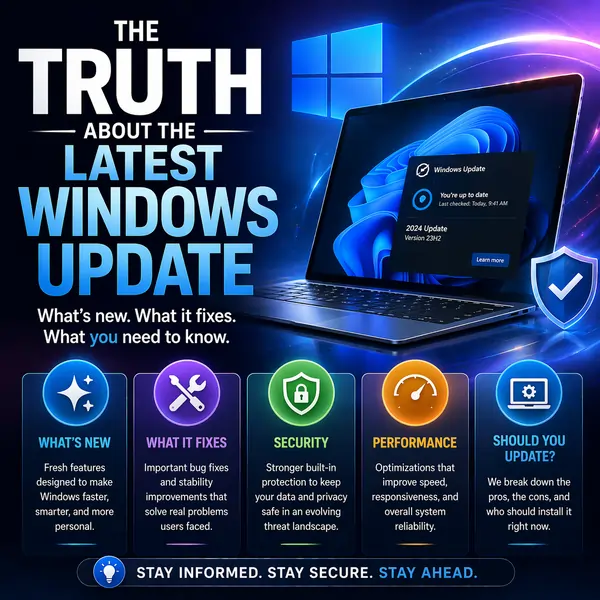
The Windows Update is more than just another restart prompt—it’s a messy mix of critical security fixes, new features, and real‑world problems like install failures, restart loops, and crashes for some Windows 11 users. To really understand what’s going on, you need to look at what this update contains, what it breaks, and how to protect your system before and after installing it.
What the Latest Windows Update Actually Is
In early 2026, Microsoft rolled out several major Windows 11 patches, anchored by the February 2026 security Windows Update KB5077181 and followed by emergency and out‑of‑band fixes in January and March. These updates are part of Patch Tuesday, Microsoft’s monthly cycle that bundles security patches and quality improvements into cumulative updates.
On paper, the latest Windows Update promises:
- Security fixes for 58 vulnerabilities, including six actively exploited zero‑day flaws in core Windows components.
- Reliability and quality improvements for Windows 11 24H2/25H2, covering system services, networking, and built‑in apps.
- Under‑the‑hood changes to support newer hardware, drivers, and remote access scenarios.
You can see Microsoft’s official security breakdown on the Patch Tuesday bulletin, such as the February 2026 roundup from BleepingComputer that details the zero‑days and affected Windows versions.
What This Windows Update Gets Right
Despite the loud complaints online, this Windows Update fixes real and serious problems.
Key positives include:
- Closing security holes: Microsoft’s February Patch Tuesday fixes 58 flaws and six zero‑days, including Windows Shell and other core components that attackers were actively exploiting.
- Stabilizing remote access: Earlier in January, Windows 11 updates broke some Remote Desktop connections to Cloud PCs, but an emergency out‑of‑band patch shipped on January 17 to address authentication problems.
- Improving overall quality (on paper): Microsoft has publicly admitted Windows 11 has a quality problem and announced a “Quality Reset,” promising fewer forced reboots, less AI bloat, and more focus on performance and reliability in future Windows Update cycles.
If you’re running Windows 11 and you stay fully unpatched, you’re leaving your system exposed to already‑exploited vulnerabilities that this Windows Update was specifically designed to close.
The Problems Users Are Actually Seeing
Of course, that’s not the whole story. The latest Windows Update also comes with a messy list of real‑world issues.
Failed installs and endless loops
Windows 11’s February cumulative update, KB5077181, has generated increasing reports of:
- Failed installations with obscure error codes like 0xF099, 0x800F3, 0x0922, and 0x80096004.
- Systems stuck in a download/install loop where the Windows Update keeps trying, failing, and retrying.
- DHCP‑related errors that leave Wi‑Fi “connected” but unusable, breaking internet access after updating.
AOL’s coverage notes that some Windows 11 users even hit continuous restart loops after KB5077181, leaving them unable to reach the desktop at all until they uninstall the update.
Crashes, freezes, and boot issues
Other 2026 updates have caused system‑level glitches:
- The January 2026 Windows 11 update was described as “a mess,” with some PCs experiencing shutdown problems and app crashes in OneDrive and Dropbox until Microsoft pushed an emergency fix.
- ZDNET’s “bug roundup” notes that early 2026 updates impacted Windows 11 25H2 and 24H2, triggering black screens on boot with “unmountable boot volume” stop codes for some users.
- On Microsoft’s own Q&A, admins report that January 2026 update KB5074109 caused freezes minutes after sign‑in, broken restart/shutdown actions, and zero‑CPU usage in Task Manager until they rolled back via a restore point.
Pulled and replaced updates
Microsoft has already had to pull at least one March optional Windows Update and replace it:
- Optional update KB5079391 was temporarily paused after it triggered installation failures and error 0x80073712, indicating missing update files.
- Microsoft admitted to Windows Latest that it paused the rollout and later shipped KB5086672 as an out‑of‑band replacement to deliver the intended fixes without the install bug.
For a concise overview of which updates are currently paused, replaced, or impacted by known issues, Microsoft’s Windows release health page is the best live reference for each Windows Update wave.
Why Windows Update Keeps Causing So Many Issues
The pattern in 2026 has been clear: ambitious Windows Update releases that fix real security issues but sometimes introduce stability problems on specific hardware & software combinations.
Several factors drive this:
- Windows 11’s complexity and hardware diversity mean any deep change—especially in boot, networking, or drivers—can break some configurations.
- Microsoft has been pushing frequent feature updates and AI‑driven enhancements, increasing the risk of regressions until the new “Quality Reset” strategy fully takes effect.
- Many users auto‑install optional or preview updates that aren’t strictly necessary, exposing themselves to bugs that haven’t been fully tested on all devices.
That’s why some power users and IT admins treat each Windows Update with caution, delaying early installations until they see how it behaves in the wild.
How to Check the Health of a Windows Update
Before you install (or after you’re hit by a problem), it’s worth checking trusted sources to see what’s going on with a particular Windows Update.
Useful resources:
- Microsoft’s own Windows release health for official known issues, safeguards, and out‑of‑band fixes.
- Patch Tuesday security summaries, like BleepingComputer’s coverage of Microsoft’s February 2026 Patch Tuesday, to see what security vulnerabilities each update addresses.
- Technical news and analysis from outlets such as Windows Central’s look at KB5077181 install issues, The Verge on January’s buggy update, and ZDNET’s bug roundup for early 2026 updates.
Checking these sources before hitting “Install” gives you a sense of whether a given Windows Update is stable or causing widespread trouble.
How to Fix a Windows Update That Won’t Install
If your Windows Update keeps failing, you’re not alone—this is one of the most common 2026 complaints.
Microsoft’s guidance on the topic is fairly consistent:
- Run the Windows Update troubleshooter
- Reset the update components and component store
- Microsoft explains using DISM in a support thread on how to fix a Windows Update that will not install, cleaning the component store before trying again.
- Try manual installation
- Download updates directly from the Microsoft Update Catalog using the KB number (for example, “KB5077181”) and install them manually.
- Use an in‑place repair install
- Block or hide a specific problematic update
Community guides and quick videos, such as YouTube’s “HOW TO FIX WINDOWS UPDATE ERROR 2026 (Easy Guide),” walk through these steps visually for less technical users.
How to Recover from a Bad Windows Update
If the latest Windows Update pushed your PC into crashes or restart loops, you can usually recover without a full wipe.
Steps that often work:
- Boot into Safe Mode or WinRE (Recovery Environment):
- Uninstall the offending update:
- In Settings → Windows Update → Update history → Uninstall updates, remove the latest KB (e.g., KB5077181) that coincided with your issues.
- Use System Restore:
- Pause further updates temporarily:
- You can pause Windows Update for up to several weeks to avoid immediately reinstalling the problematic patch while Microsoft ships a fix.
These steps are echoed across Microsoft’s own answers and independent tutorials, and they allow you to regain control without losing apps and data.
Smart Strategies for Handling Future Windows Updates
Given how volatile some recent releases have been, a smarter strategy for dealing with Windows Update can save you a lot of headaches.
A practical approach:
- Install security updates—but on your schedule.
- Don’t ignore them, especially when zero‑days are involved, but consider waiting a few days to see early reports and check Windows release health.
- Treat optional/preview updates cautiously.
- Optional March updates like KB5079391 are often where new bugs show up first; unless you need a specific fix, you can safely skip or delay them.
- Always back up first.
- Stay informed.
- Follow reputable sources like Windows Central, The Verge, ZDNET, and Microsoft’s own Windows release health page to get a clearer picture before accepting each update.
Over time, Microsoft’s “Quality Reset” plan may lead to less disruptive Windows Update cycles, with fewer surprise reboots and less “AI bloat” being pushed into core apps. For now, though, a bit of caution and preparation goes a long way.
The Truth About the Latest Windows Update
The truth is that the latest Windows Update is neither pure disaster nor pure progress—it’s a high‑stakes balancing act between urgent security fixes and the unavoidable instability of a giant, constantly changing operating system. For many users, it quietly patches dangerous vulnerabilities and keeps Windows 11 secure; for an unlucky minority, it triggers crashes, restart loops, or install failures that demand manual intervention.
The best move is not to fear updates, but to manage them: keep backups, avoid installing optional patches on day one, watch reputable sources for early warnings, and learn how to roll back or repair a problematic Windows Update when necessary. That way, you get the security and improvements Microsoft intends—without letting a single buggy patch derail your entire system.
In the end, the latest Windows Update highlights the constant trade‑off between security, stability, and convenience—and why users need to treat every major patch as something to manage, not blindly trust or completely avoid. And if you’re curious about how next‑generation AI could reshape how we troubleshoot and even automate updates in the future, you might also want to read “Gemma 4 AI Model: What Makes It Different?” in this deep‑dive on the Gemma 4 AI Model.
Frequently Asked Questions About the Latest Windows Update
What is the latest Windows Update and what does it include?
It’s a cumulative update for Windows 11 that bundles security patches, bug fixes, and performance improvements, including fixes for zero-day vulnerabilities and system reliability.
Why is this update important?
Because it closes actively exploited security gaps and fixes stability issues, helping keep your system secure and functional.
Why are users experiencing problems after installing it?
Updates modify core system components like drivers, boot processes, and networking, which can cause conflicts on certain setups, leading to errors.
What are the most common issues?
Users report:
- Installation failures and error codes
- Restart loops
- Systems stuck on “Working on updates”
- Wi-Fi or network problems
- App crashes and system instability
Does the update slow down your PC?
Sometimes temporarily. After installation, Windows may run background optimization tasks, but driver conflicts or bugs can also cause longer-term slowdowns.
Is it safe to delay the update?
You should not ignore critical updates, but it’s reasonable to delay briefly, especially for optional or preview builds, until issues are known.
How can I tell if the update caused my problem?
Check Update History in settings and match installation dates with when issues started. Specific KB updates can often be linked to known problems.
What should I do if the update fails?
- Run the Windows Update troubleshooter
- Restart your PC
- Ensure enough storage space
- Use tools like DISM and SFC
- Manually install via the Microsoft Update Catalog
How can I uninstall a problematic update?
Go to Settings → Update History → Uninstall Updates, or use Safe Mode/Recovery Environment if your PC won’t boot properly.
What if my PC is stuck in a restart loop?
Access the Windows Recovery Environment and try:
- Startup Repair
- System Restore
- Uninstalling the latest update
How can I prepare before installing updates?
- Create a backup or restore point
- Save important files externally
- Check known issues reports
Should I install optional or preview updates?
Generally no—unless needed. These builds often introduce new bugs before full release.
How do I install updates manually?
Search the KB number in the Microsoft Update Catalog, download the correct version, and install it manually.
Where can I find reliable update information?
Use official Microsoft documentation, release health dashboards, and trusted tech sources for known issues and fixes.
What’s the best strategy for Windows Updates in 2026?
Treat updates as essential but managed:
- Keep automatic updates on
- Delay non-critical updates briefly
- Maintain backups and restore options
- Learn basic troubleshooting and rollback steps
This approach helps you stay secure without risking major system disruptions.